Delete WhatsApp messages — instructions [March 2025]
26.03.2025
Arrange a non-binding consultation now
In a non-binding conversation, we'll show you how to use messenger communication in compliance with GDPR, automate processes and achieve measurably more revenue and efficiency with WhatsApp. Clear, practical and tailored to your company.

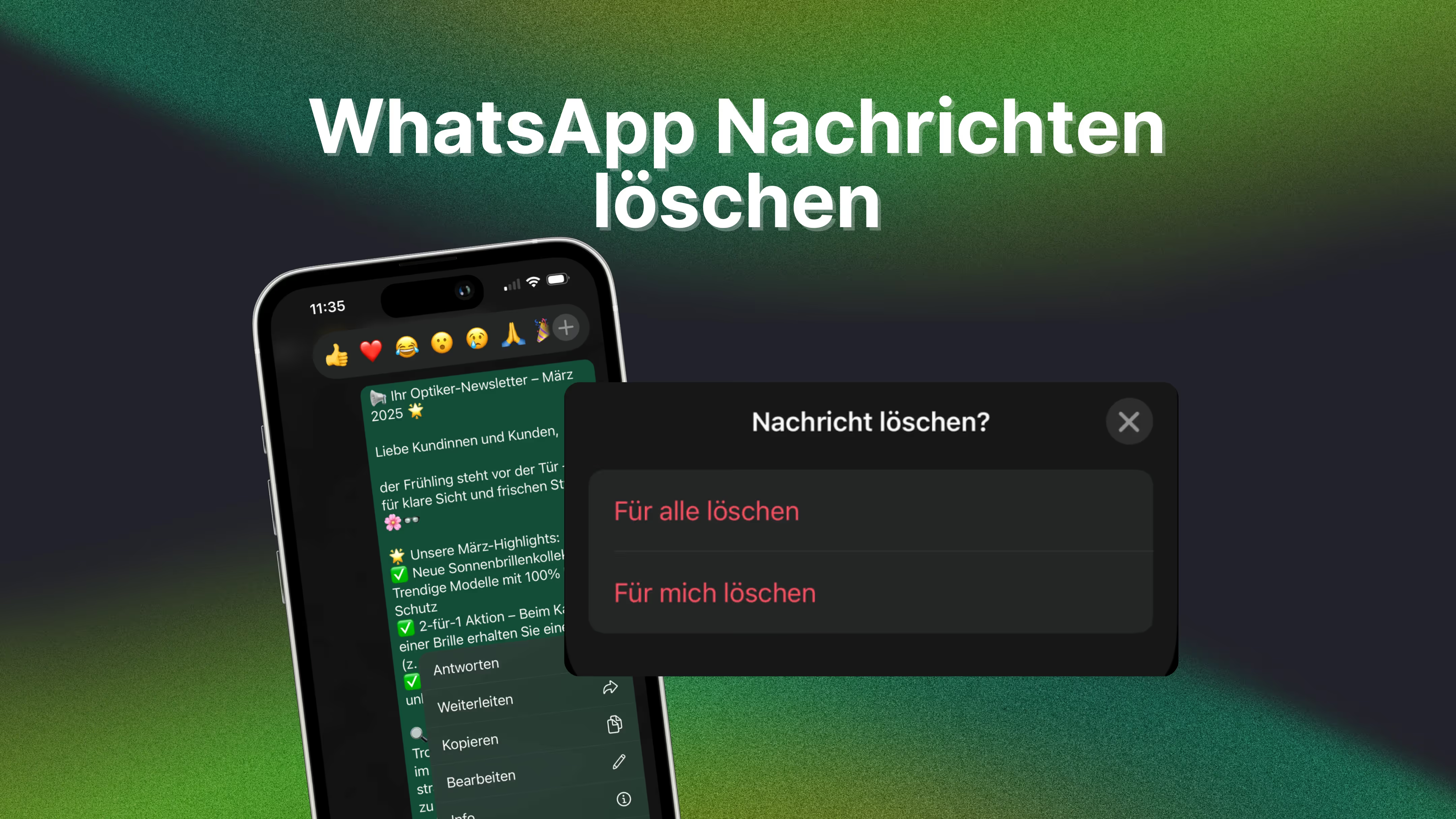
Delete messages in WhatsApp Messenger — is that possible?
Yes, it works! In whatsapp Can you send messages within a time window of approx. 2 days and 12 hours delete for all recipients. After this period, deletion is only possible on your own device. Please note that deleted messages are replaced by the message “This message was deleted”, which is visible to all chat participants.
Information directly from Meta about deleting WhatsApp messages is available in this FAQ post from WhatsApp. By the way: Even in WhatsApp Business allows you to delete messages!
Guide: How to delete messages in WhatsApp
When deleting WhatsApp messages, you have two options:

1. Delete message for everyone
If you sent a message by mistake or want to remove it later, you can within 2 days and 12 hours delete for all participants. Here's how:
1.: Open WhatsApp Messenger and go to the chat with the message you want to delete.
2.: Tap and hold the message until the menu appears.
3.: Select the trash can icon.
4.: Tap “Delete for everyone”.
Important: After deletion, a message remains visible in the chat: “This message was deleted”. If the recipient opened WhatsApp before you deleted the message, they may have already read it.

2. Delete message just for yourself
If you only want to remove a message on your own device, it remains visible to the recipient. This feature is available without time limits, even with very old messages and even with messages from the chat partner.
Here's how:
1.: Open the chat with the message.
2.: Hold down on the message and tap the trash can icon.
3.: Select “Delete for me”.
This method is useful when you want to clean up your chat history without affecting the recipient's chat.

What is the difference between “delete for all” and “delete for me”?
When deleting messages in whatsapp There are two options. The most important difference: “Delete for all” only works with your own messages, while “Delete for me” can be used for all messages in the chat — even with those who sent other people.
1. “Delete for everyone”
- Only available for messages you've sent.
- Delete the message for all chat participants.
- Only works within 2 days and 12 hours after shipping.
- The message is provided by the note “This message was deleted” replaced.
- Recipients can have seen the message before or saved it as a screenshot.
2. “Delete for me”
- Can be used for all messages in the chat, even for received messages.
- Remove the message only on your own device.
- The recipient still sees the message.
- No time limit — can be done at any time
Conclusion: If you've sent a message of your own by mistake, you should quickly “Delete for everyone” choose. If you just want to clean up your chat history, you can use “Delete for me” also remove received messages without affecting other chat participants.
How can you delete entire chats in WhatsApp?
If you not only individual messages, but entire chats If you want to delete WhatsApp, there are two options:
1. Delete an individual chat
- Open WhatsApp and go to the chat overview.
- Hold down the desired chat (swipe left on iOS).
- Tap the trash can icon and select “Delete chat”.
- Important: This only removes the chat from your device — the interlocutor keeps their chat history
2. Delete all chats at once
In case you want to clean up your WhatsApp, you can delete all chats at once:
- Open takes → chats.
- Tap Chat history.
- Select “Delete all chats” (only chat history is removed, groups are retained) or “Clear all chats” (Messages are deleted, chats remain on the list).
Note: You can't restore deleted chats unless you have a recent backup.
This feature is also available: Automatically delete messages in WhatsApp
In whatsapp Do you have the option to have messages automatically deleted by using the function “Self-deleting messages” activate. With this setting, messages disappear from both your chat history and the recipient's chat history after a set period of time. Information about this is available in WhatsApp FAQ about self-deleting messages.
How to enable self-deleting messages for an individual chat:
1.: Open chat: Start WhatsApp and select the chat for which you want to activate the feature.
2.: View chat info: Tap the name of the contact or group to open the chat information.
3.: Select self-deleting messages: Scroll down and tap “Self-deleting messages”.
4.: Set the time period: Select the desired duration: 24 hours, 7 days or 90 days. After this time has elapsed, the messages are automatically deleted.
Notes:
- Set default message duration: You can also set a default duration for all new chats. To do this, go to takes > Data protection > Default message duration and select the desired time period.
- keeping messages: Recipients can decide to keep certain messages despite the self-delete function being activated. In this case, you will be notified as the sender and can either agree or decline.
- visibility: Even with the self-delete function activated, recipients can save messages before they disappear or take screenshots.
By using self-deleting messages in WhatsApp, you increase the data security and privacy your communication by determining how long information remains visible
About the author
Christian Strauch
Co-Founder and CEO
Christian Strauch is CEO and co-founder of hellomateo and is responsible for the strategic and operational management of the company. In his role, he is particularly responsible for sales, marketing and partners. Under his leadership, hellomateo has developed into a central tool for customer loyalty via WhatsApp, e-mail and letter for more than 2,000 companies.
More interesting articles
WhatsApp Business Data Processing Agreement— all information for companies
WhatsApp is an integral part of customer communication for many companies. High opening rates and quick responses make the channel attractive. But as soon as you use WhatsApp Business, you process personal data — and therefore there are clear GDPR requirements. In this article, you will find out what role the order processing contract plays and why it is indispensable for companies.
![Set up WhatsApp Business Auto Reply — Quick Guide [2025]](https://cdn.prod.website-files.com/68b19e5233a4641b9e2e4f95/692dd05228900f9fa9834bd4_whatsapp-automatische-antwort.avif)
Set up WhatsApp Business Auto Reply — Quick Guide [2025]
With automatic Reply messages Is there for them in the WhatsApp Business App provides a practical way to your customers in the digital chat channel automatically greet And in a flash one first reaction to show. Because day-to-day business is often stressful; you can't always respond personally to incoming messages and write back to the customer immediately.
But there are also many other reasons why it makes sense to use automatic reply messages when using the WhatsApp Business app. With this Quick guide Automatic answers are set up in a flash!

![Grüner Haken in WhatsApp – So bekommen Unternehmen die Verifizierung [Oktober 2025]](https://cdn.prod.website-files.com/68b19e5233a4641b9e2e4f95/692dcf56fb67605603b34297_gruener-haken.avif)
Grüner Haken in WhatsApp – So bekommen Unternehmen die Verifizierung [Oktober 2025]
WhatsApp hat eine neue Funktion eingeführt: Unternehmen können Ihr Konto verifizieren lassen und bei erfolgreicher Legitimation einen grünen Haken in dem WhatsApp Business Unternehmensprofil erhalten. Das sorgt für mehr Vertrauen bei Kaufinteressenten Ihres Unternehmens und steigert Ihre Umsätze! Zudem können Sie sich durch einen grünen Haken in WhatsApp Business von Ihren Wettbewerbern abheben. Doch wie funktioniert die Beantragung des beliebten Symbols? In diesem Beitrag zeigen wir es Ihnen!